Help Center › How to add a teammate
How to add a teammate
Only the workspace owner can invite or remove people. Members can do everything except billing and inviting others. Each person counts as one user on your plan.
About 2 minutes
Open Settings → Team
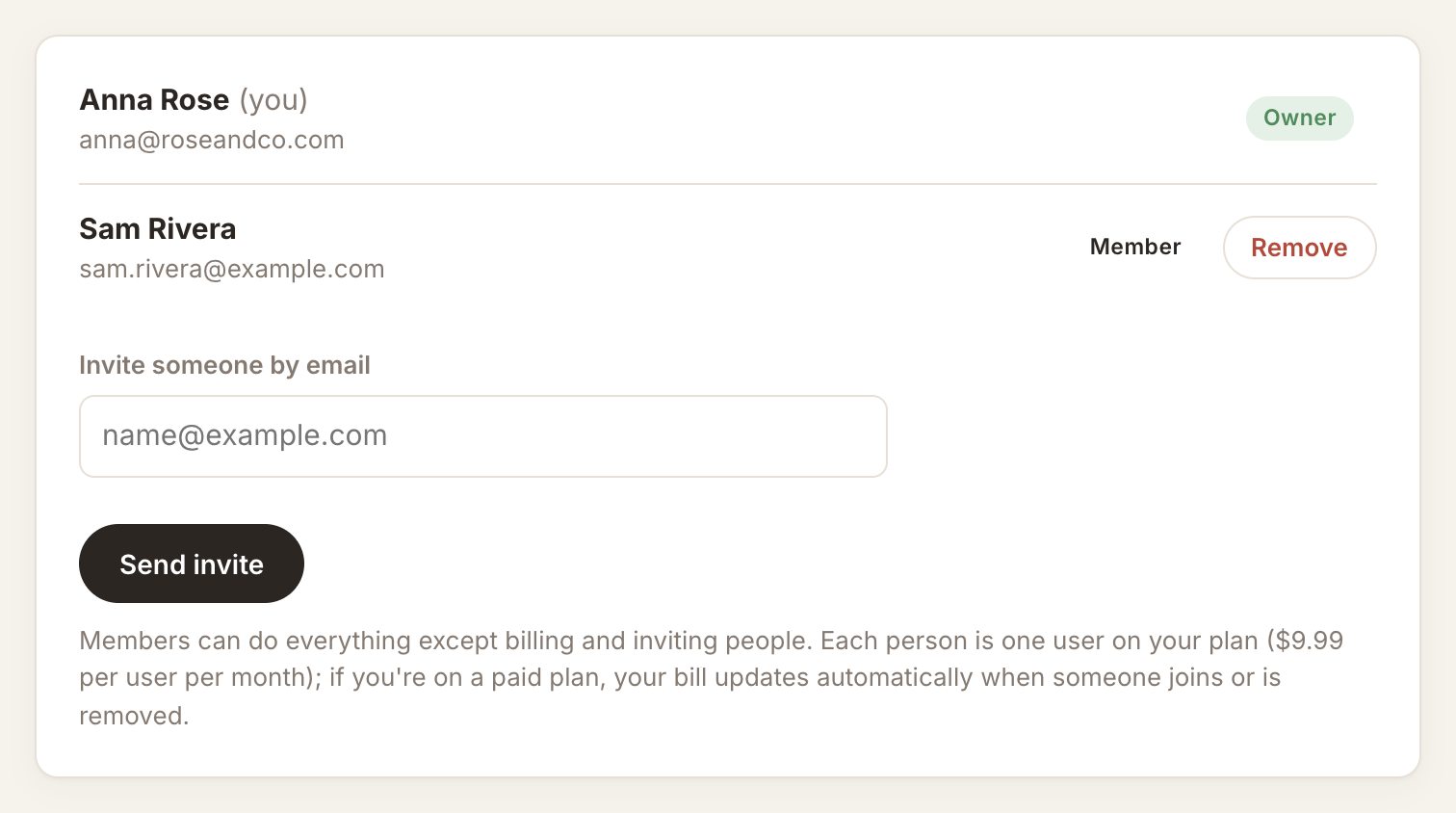
Click Settings, then the Team tab. You'll see everyone in your workspace.
Invite by email
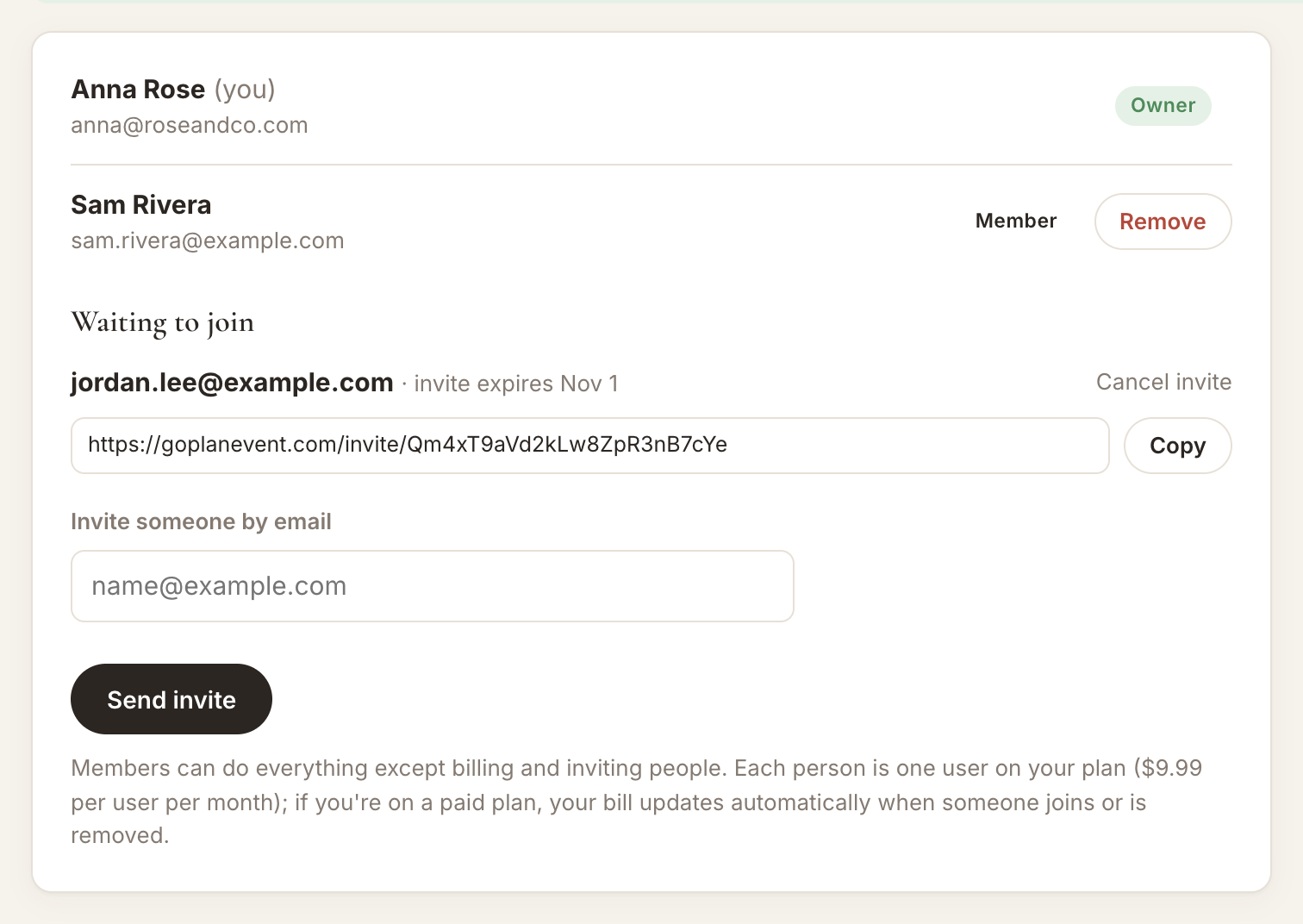
Type their email under Invite someone by email and click Send invite. The invite goes from your Gmail. If Gmail isn't connected, copy the invite link and send it yourself.
They accept
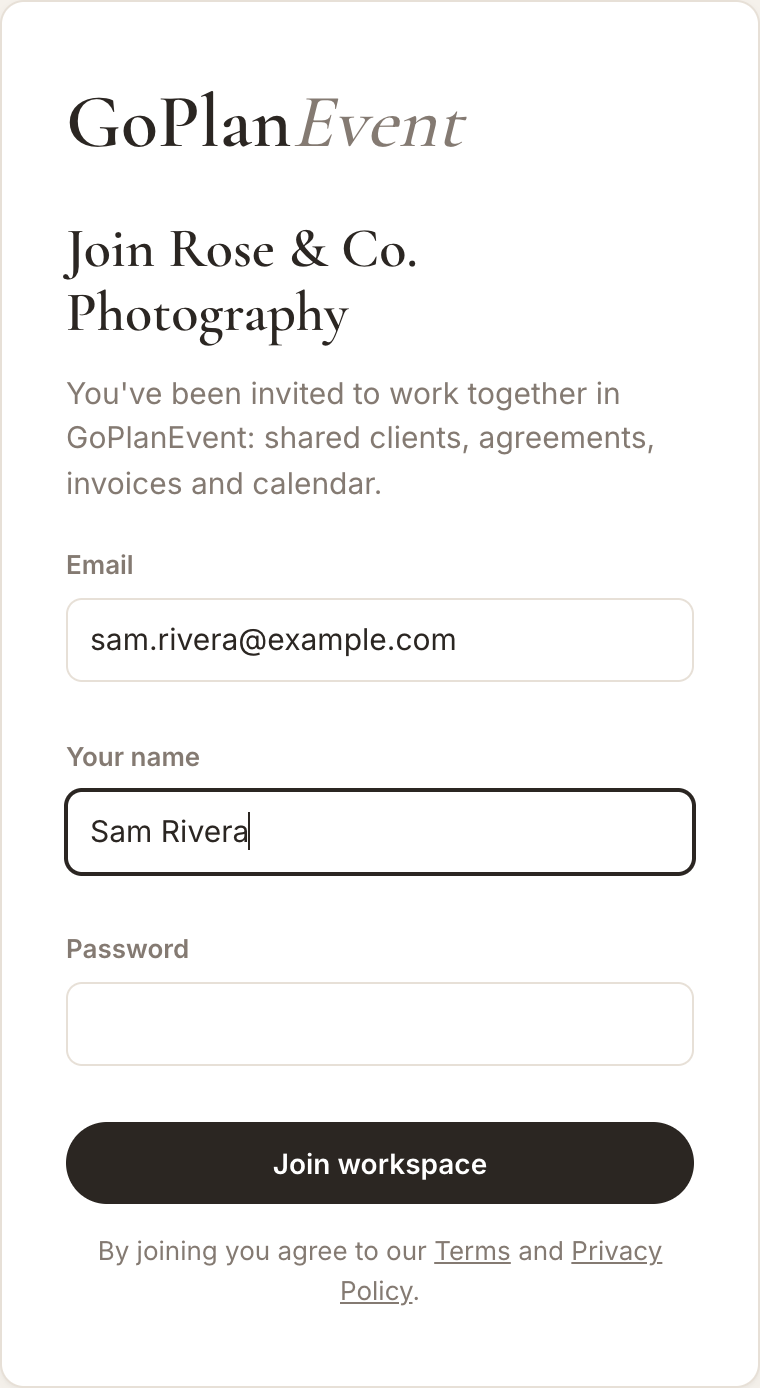
They open the link, set their name and password (or use Google), and click Join workspace. If they already have their own GoPlanEvent account, they log in and join, moving into your workspace.
Good to know
- Invite links work for 14 days and can be used once.
- To remove someone, click Remove next to their name in the Team tab.
- On a paid plan, your bill updates automatically when someone joins or leaves.
More guides
Manage your clients & schedule in one place
Agreements clients sign online, invoices, payment schedules and your Google Calendar, all in GoPlanEvent.