How to create and send an agreement
Agreements are built from your saved packages and your standard sections. The client signs online, and you both get the signed PDF.
About 5 minutes
Open the client and click "New agreement"
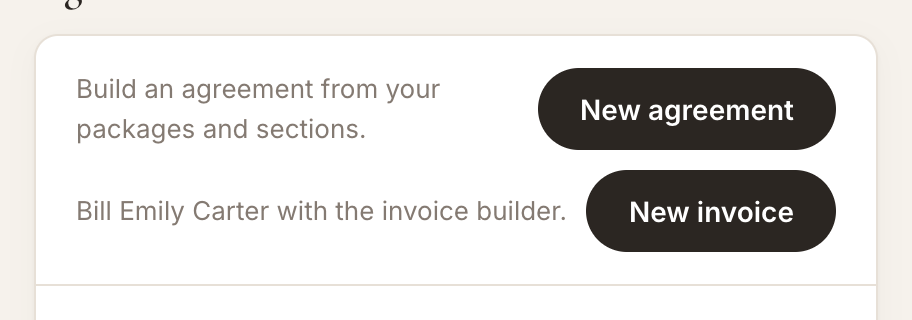
Go to Clients, open the client, and under Agreements & invoices click New agreement. It opens with your standard opening text and your sections already in place.
Add the package
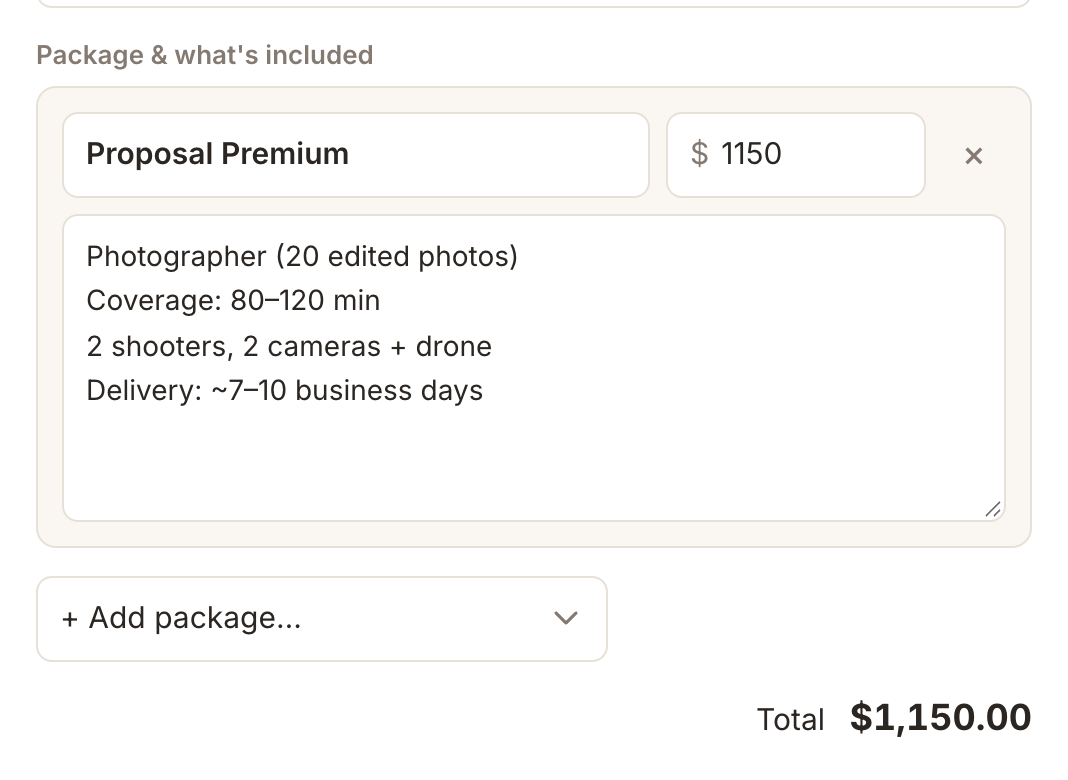
Under Package & what's included, click + Add package… and choose one of your saved packages. Its price and everything included fill in, and the agreement is named after it, for example "Proposal Premium Agreement" (you can change the title). Choose Custom item or extra… to type one by hand. No packages yet? Create them first in Packages.
Choose the payment plan
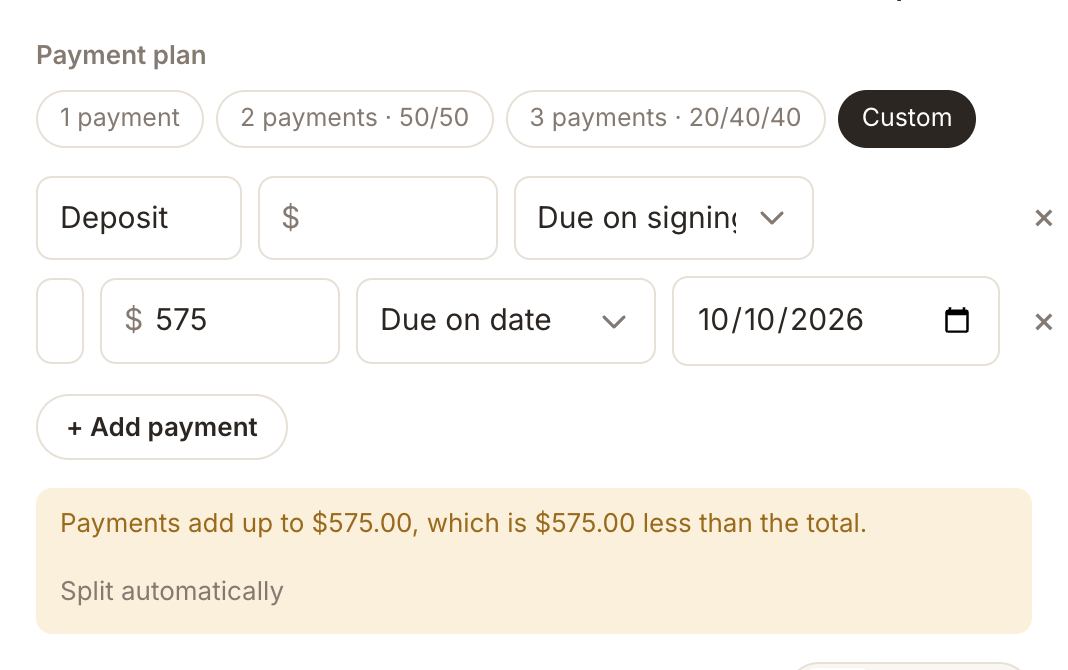
Under Payment plan, choose 1 payment, 2 payments (50/50), 3 payments (20/40/40) or Custom. The amounts are worked out for you. Set a due date for each payment.
Check the terms and edit if needed
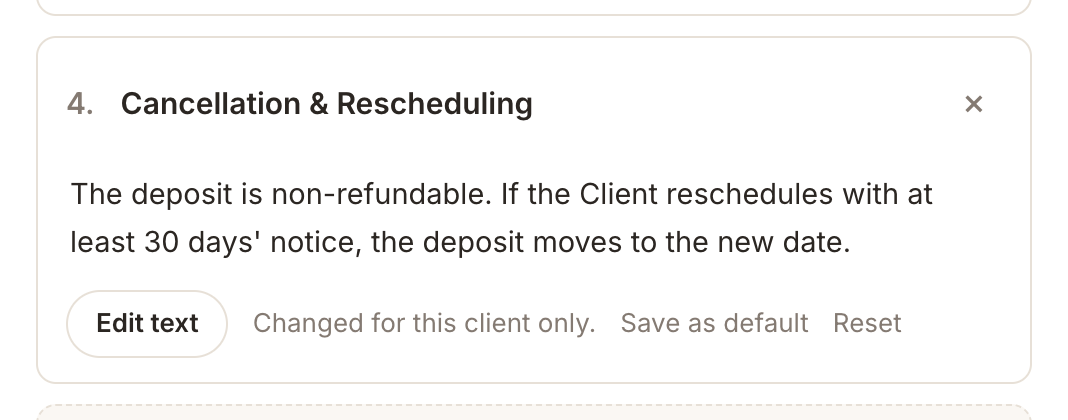
Scroll down to see your agreement sections (cancellation, delivery and so on). Click Edit text on any section to change it for this client only. Click Save as default to change that section for all future agreements.
Preview, then send
Click Preview to see exactly what your client will see. When you're happy, click Send agreement. It goes from your own Gmail with a Review & sign agreement button. No Gmail connected? Click Mark as sent and share the link yourself.
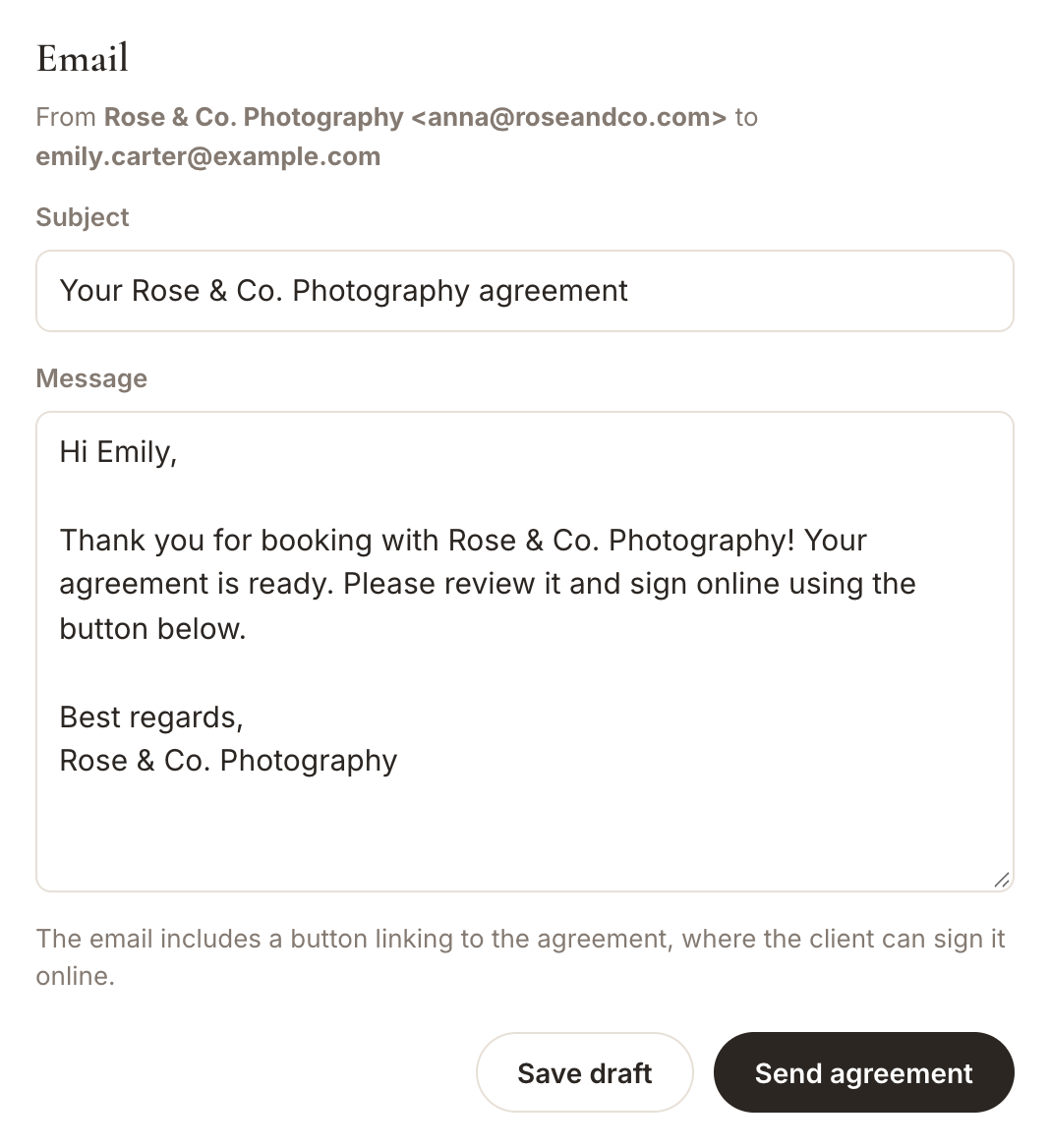
Your client signs online
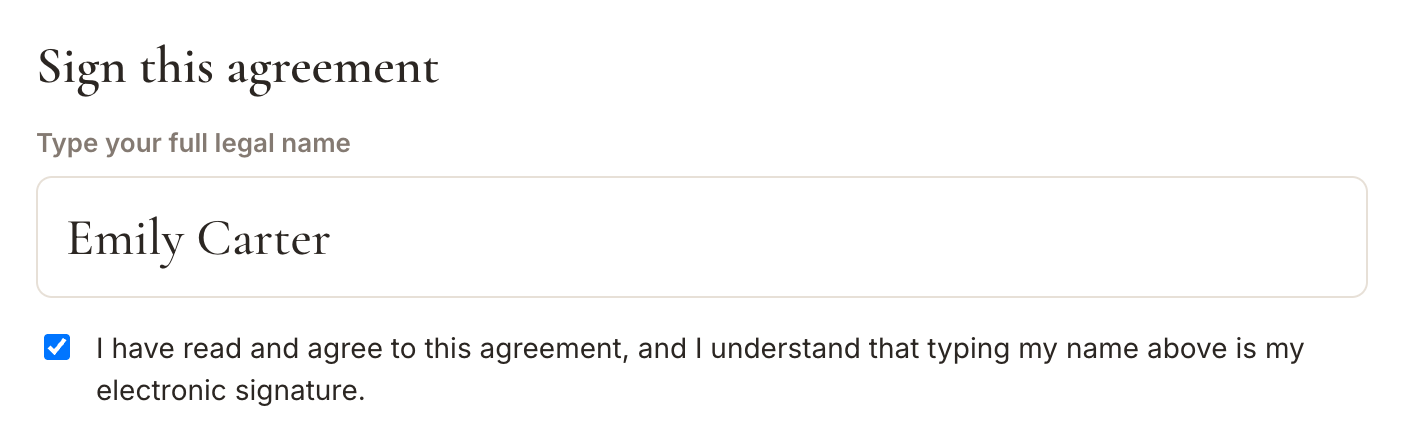
The client opens the link, reads the agreement, types their name and ticks "I agree". The status changes to Signed, and a signed PDF is emailed to both of you. You can download the PDF any time with Download PDF.
Good to know
- Change the standard opening and closing wording, and the email text, in Settings → Agreement defaults.
- Save a draft any time with Save draft and come back later.
- Once an agreement is signed, its text is locked and can never change.
- The agreement status shows on the client page: Draft, Sent, Viewed or Signed.
More guides
Manage your clients & schedule in one place
Agreements clients sign online, invoices, payment schedules and your Google Calendar, all in GoPlanEvent.