How to connect your Gmail and Google Calendar
Connecting Google lets GoPlanEvent send emails from your own address (they appear in your Sent folder) and add booked clients to your calendar. You connect each business separately.
About 2 minutes
Open Settings → Email & calendar
Click Settings in the menu, then the Email & calendar tab. You'll see a card for each of your businesses.
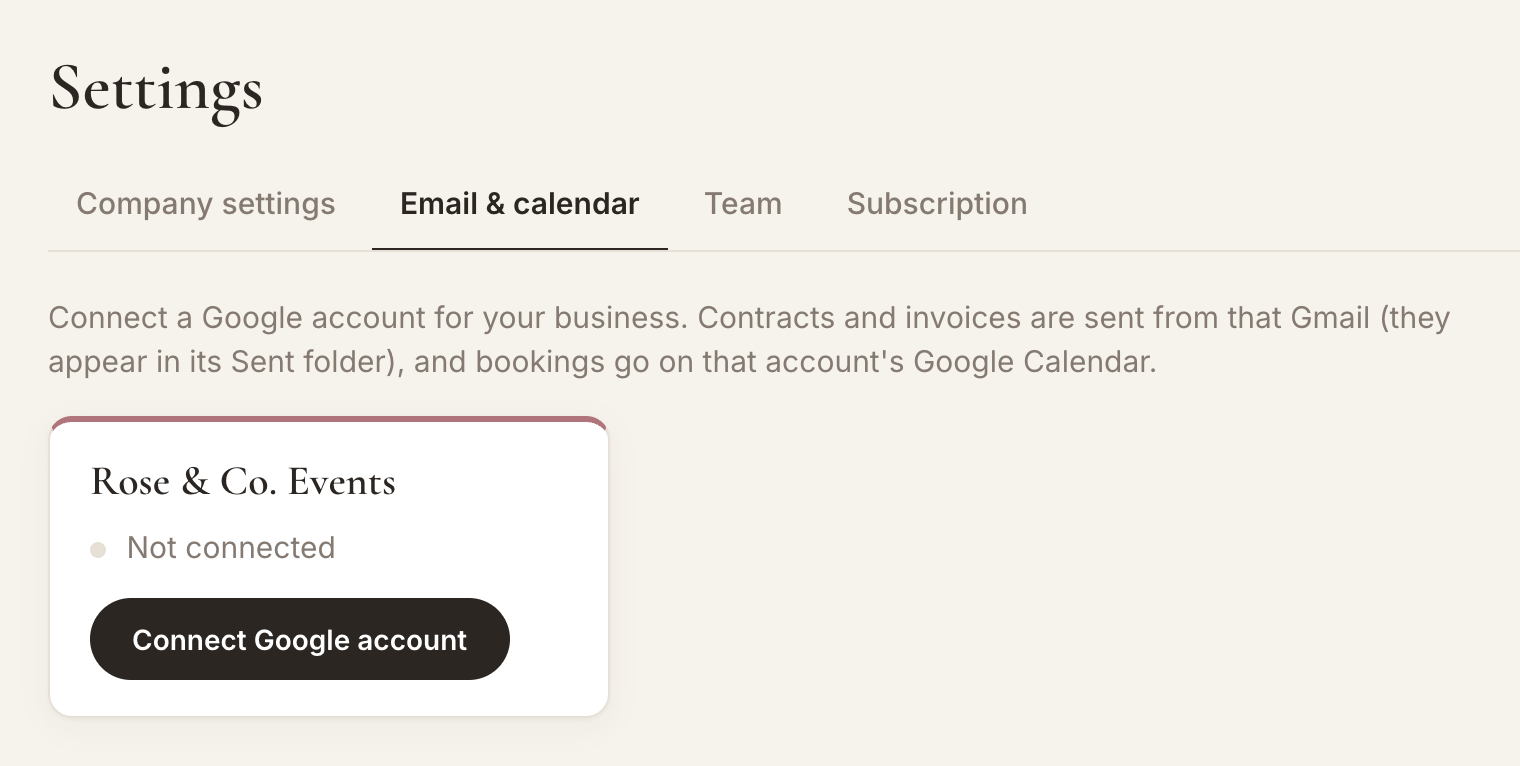
Click "Connect Google account"
Click the button on the business you want to connect, then choose the Google account that business uses.
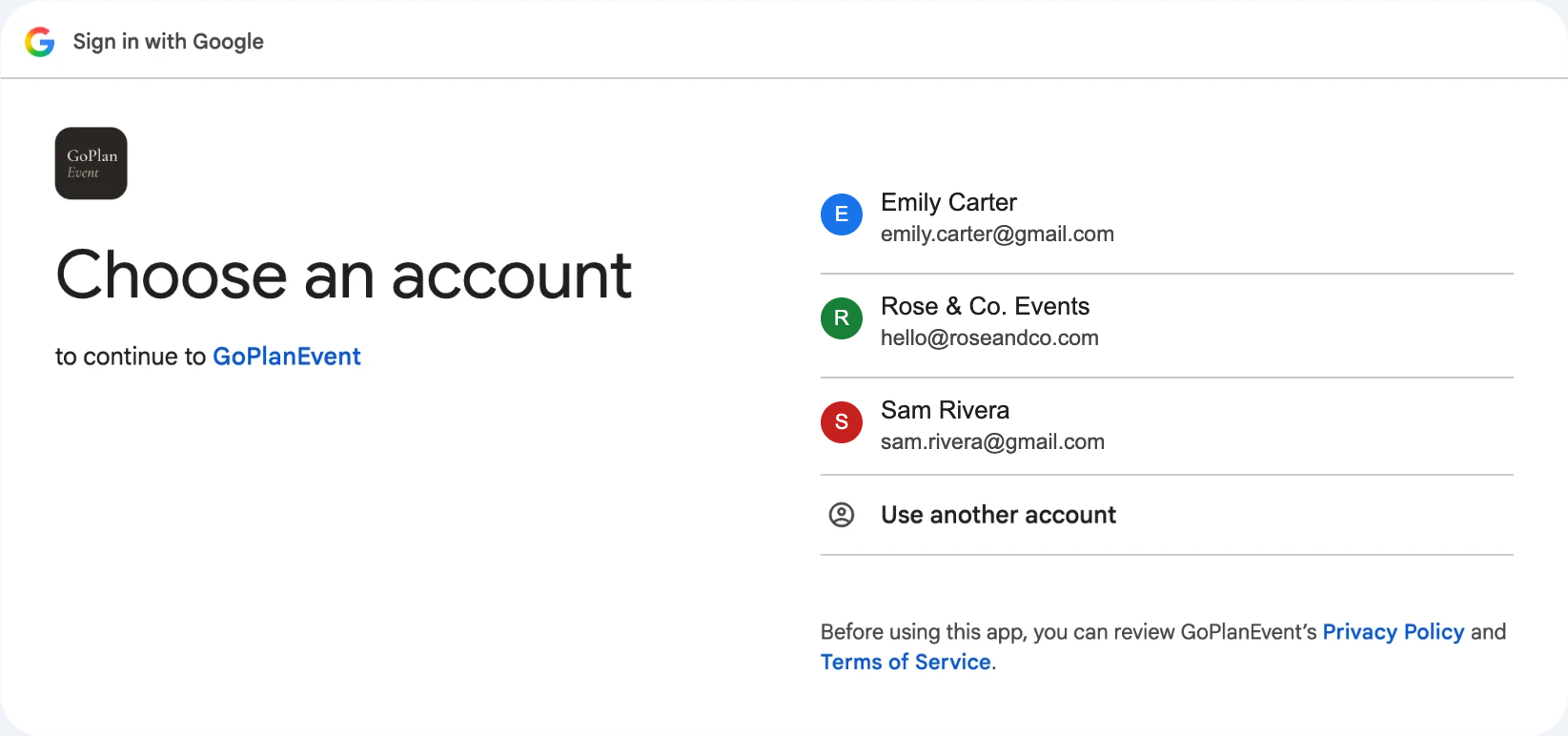
Allow access
Google lists what GoPlanEvent can do: send email on your behalf and view and edit events on your calendars. We never read your inbox. Tick any boxes and click Continue. If Google first says the app isn't verified, click Advanced, then Go to GoPlanEvent.
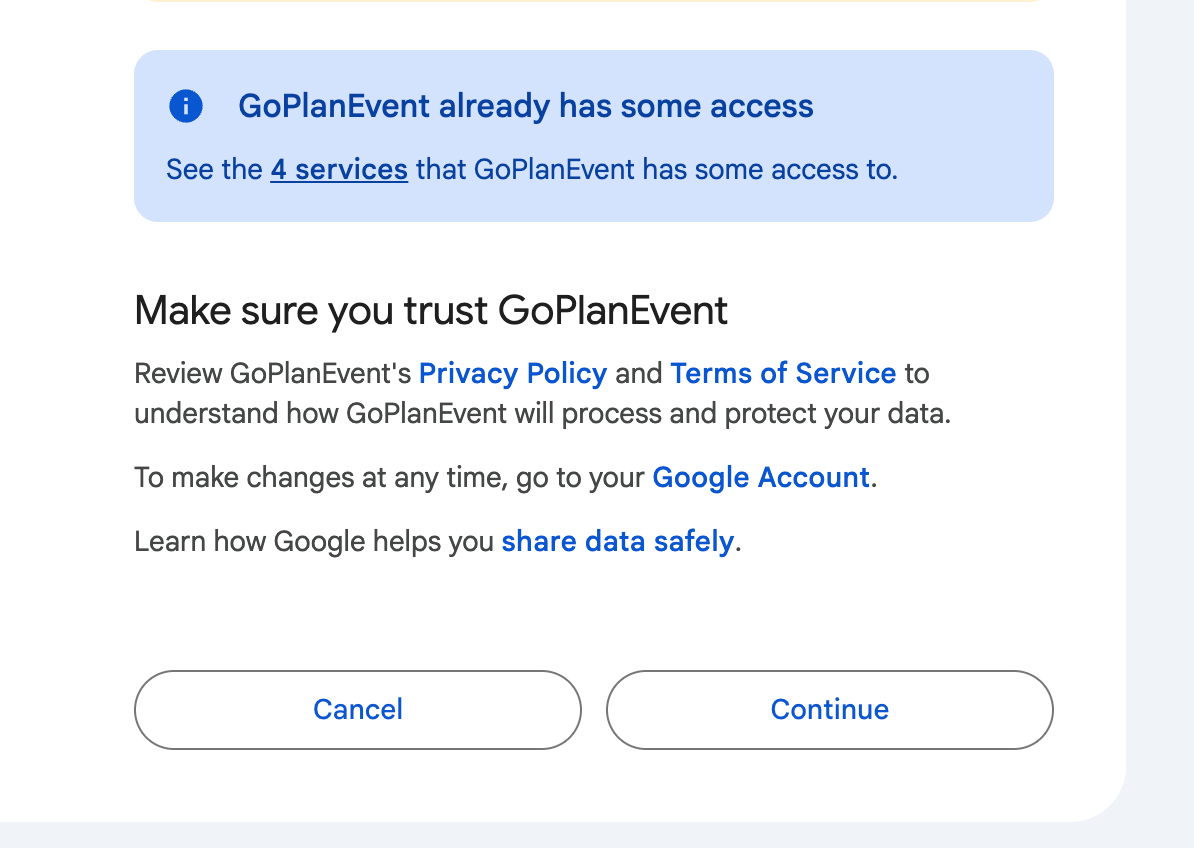
You're connected
You're taken back to Settings, and the card shows Connected with your Gmail address. Now Send agreement and Send invoice use this Gmail.
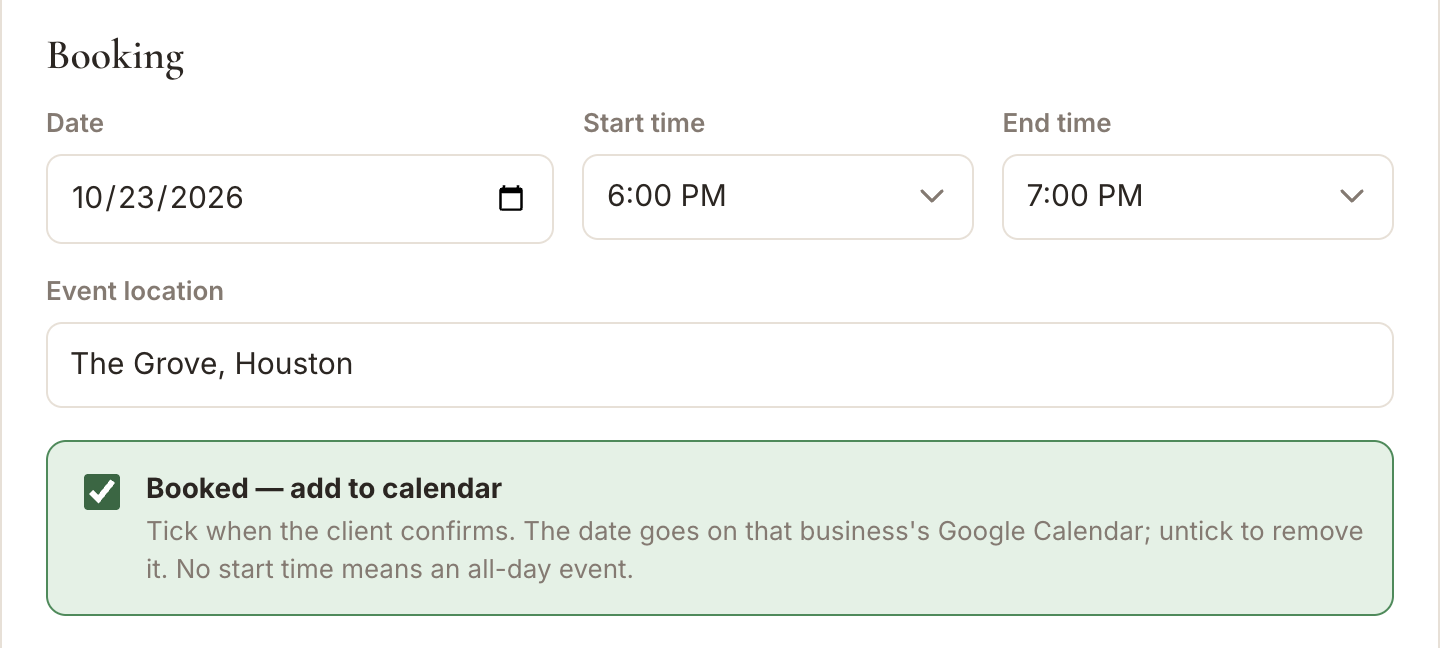
Put a client on your calendar
Open a client and find Booked — add to calendar under Booking. Tick it and click Save changes. The event appears on that business's Google Calendar with the date, time and location. Until the business is connected, the box tells you to connect Google in Settings first.
Good to know
- To switch accounts, click Reconnect and choose a different Google account.
- Disconnect stops sending and calendar sync for that business. Your data stays.
- Teammates can connect Google too: it's a Settings option for everyone.
More guides
Manage your clients & schedule in one place
Agreements clients sign online, invoices, payment schedules and your Google Calendar, all in GoPlanEvent.